Showing posts with label Conferences. Show all posts

Feb 4, 2016

STEM READ Professional Development

What would you do if a supervolcano erupted, your house caught on fire, you are all alone, and you had to travel across the country to reunite with family? Find out with the fast paced thriller, Ashfall!

The author, Mike Mullin, visited schools in Unit 5 and District 87 during the week before the Teacher Professional Development and provided some insight into his creative writing process while discussing the science aspect of the volcano and how he obtained his research. Mullin was engaging and students were able to interact with him before, during and after the presentations.

Dec 3, 2015

Video Conference with Google Hangouts

hangouts-intro-animation

Hangouts have arrived for teachers through our district Google Apps for Education (GAFE) accounts.  This is a wonderful resource that can be used to bring a variety of educational opportunities in our classrooms.

  • Create teacher groups (grade level, teams, departments, etc...) and keep in touch through text messages

  • Conduct video conferences to streamline cross district PLC meetings

  • Connect with teachers/groups outside of the district for professional learning opportunities

  • Share your screen with other teachers/coaches to help troubleshoot problems

  • Connect your classroom to classes around the world for exciting learning opportunities

  • And much more!

To start using Hangouts, navigate to https://hangouts.google.com or download the app on your personal devices.  Once you login with your district Google account, you will be all set to start finding others and starting the collaboration!

We will be releasing a series of Teacher's Corner posts that highlights these different uses.  Check back each week for new information, and if you want to dive in headfirst, contact your instructional technology coach!

Sean Mullins | Instructional Technology Coach

May 15, 2015

Start Your Personal Learning Network with Google+

Social media has ushered in a new wave of professional development for teachers all over the world.  Personal Learning Networks (PLNs) are simple systems that teachers have in place that help them keep up to date on new trends in education.  Social media can and should be leveraged to develop your PLN.  Many teachers already frequent Pinterest, Facebook, Twitter, etc... for educational collaboration opportunities.  I would like to suggest adding Google+ to that list!


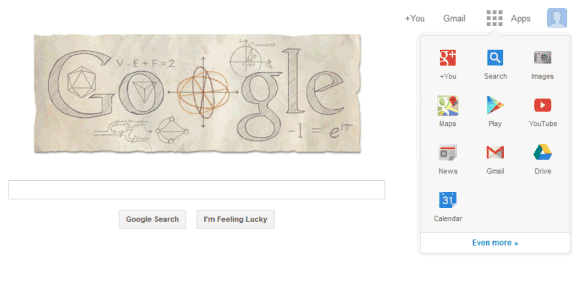
With your district Google account, you have the ability to set up Google+.  It is very simple, and only requires you to click on the "+You"  link found by your login name once you have signed into your Google Account.  You then fill out a few screens of information, most of which you can skip over.


Once you are set up, you can navigate to "Communities" through the menu on the left of your screen and start connecting with educators all around the globe who are trying to accomplish the same goals as yourself.  For example, I belong to communities that discuss "Science in Google", "Google Apps for Education", and "Education Revolutions"...and the list will surely grow.


The great thing about these communities is that they are created and moderated by regular people, not organizations.  That also means that you can create a community yourself and invite like-minded U5 educators.  As an example, I encourage everyone to join the U5 Instructional Technology community (direct link).  It's a great place for us all to share, discuss, debate, and encourage around the topic of instructional technology in Unit 5.  We will be adding content to it regularly, and encourage you to do the same!

Similarly, maybe your department wants to create a community to share web resources and have discussions around curriculum.  If we think even bigger, why not have a U5 Science community and invite all of the science teachers (or anyone for that matter) to join?  The possibilities are exciting!

If you would like more information on PLNs or Google+, please contact your district instructional technology coach!

Sean Mullins | Instructional Technology Coach

Oct 28, 2014

Google Forms: New Add-Ons Expand Functionality

Google Forms are an efficient, simple way to collect data. Some teachers use it to record data on themselves (i.e. a record of travel, self evaluation, or what I had for dinner last night). Others distribute forms to their colleagues to collect information about a training session, workload, what they had for dinner last night, etc... But most teachers use Google Forms to obtain data from their students. Some ask their kids what their next read aloud book should be. Some administer short formative assessments with Forms. And still others gather their student's thoughts and the best lunches from the cafeteria. Phew, maybe I should not have written this on an empty stomach!


formgmath

formgraph

Google has just announced that developers can start creating Add-Ons to Google Forms to further increase their flexibility and functionality. For instance, one of the first Add-Ons is called g(Math), and it can be used to embed mathematical expressions, graphs, or statistical models into a Google Form.
If you're a math teacher who has wanted to use Google Forms but found the lack of an equation editor a sticking point, this is the Add-On for you! More information about g(Math) can be found here.


formlimit

formLimiter is another simple Add-On that performs a useful function that was previously missing from Google Forms. With this tool, you have the ability to limit the date and time that the form is available, as well as the number of responses that the form will accept. A good example of how this can be used is if you want to have a sign up for an activity, but can only allow 45 individuals to attend. formLimiter will close down your form once that limit has been reached. More information about formLimiter can be found here.


formapp
docAppender is an intriguing Add-On that allow you to take selected answers from your Google Form and append them to the bottom of  Google Documents.  Using an example is the best way to illustrate how this could be useful.

Let's say that you want to provide feedback to your students on a project that they are working on.  You can share a Google Doc with them (perhaps it has the project rubric on it as well), use a Google Form in class as you observe their work to record your thoughts and observations, and when you submit the Google Form, the answers to your Form questions will be appended automatically to the bottom of the Google Doc that is shared with the kids.  And what is great about this method is that you can choose which questions from your form get appended to the Google Doc.  That means that you have have questions whose answers remain private to you, only showing up in the responses spreadsheet.  Administrators could use this method with walkthroughs.  Special Education teachers could use this method to collect data on their students by having each teacher fill in the form and then sharing the resulting Google Document when those who need it (possibly even the student).

Google Form docAppender


Google Forms are incredibly powerful and the addition of Add-Ons will only expand their functionality and range of uses. There are other very exciting Add-Ons that will be discussed in future Teacher's Corner posts. For more details, you can view the official Google post here.

Oct 24, 2014

Use Tech to Connect with Parents and Students

It's hard to argue against relationships.  They are the cornerstone of education; from Kindergarten through Senior year.  Positive relationships start with and are nurtured through communication.


stucommFace to Face when you can, Technology when you cannot.  Without a doubt, nothing replaces or is better than face to face communication.  This applies to your students as well as their parents.  In elementary school, this face to face communication with students lasts most of the school day.  As kids move into junior high and then high school, the individual contact with their teachers starts to diminish.  This is where solid communication tools offer great educational benefits to the teacher.  Here are a few ideas for keeping up the communication with students.

  • Having an online component to your classroom using CMS or Google Classroom that is accessible 24/7.

  • Sharing a folder with students using Google Drive that contains up to date information for class.

  • Emailing students using their district Gmail account.  This can be done through Outlook, or a special block in CMS.

  • Using third party technologies like Twitter, Remind, and others to be able to contact students on their schedule.


parcomm

Relationships with parents are equally, if not more, important to foster.  Because we do not see them on a day to day basis, communication with parents is unquestionably more difficult.  The can make relationships more difficult to maintain.  Here are a few tips for using technology to establish, develop, and maintain relationships with families.

  • Use your website.  And we mean, really use it.  Not just as a place for your face and a schedule, but as a true communication tool.  Unless you make it clear otherwise, you website is your public face.  It is where parents will go first if they are looking for what their child is doing in class.  You can insert a calendar into your Schoolwires page and update it with your Unit Topics, big projects, or assignment deadlines.  If you have another place on the web that you maintain and want your parents/students to be directed to, put that link on your Schoolwires page.

  • Blog.  Teacher's Corner is maintained through the Unit 5 blog system.  It uses Wordpress, and is available for all teachers in Unit 5.  It's easy to use, and blog entries are a great way to give quick updates to the public about your class.  You can discuss class projects, post images of what's going on in your class, or do a daily homework post.  There are many teachers throughout the district already using U5 blogs to communicate with parents and build relationships outside of the classroom.

  • Skyward.  Our gradebook system is not only for entering grades.  Try out features like the Messaging Center to send mass emails to parents about upcoming events.  These messages, once sent, also create a place in their Family Access for replying without having to email you directly.  You can also consider putting comments along with the individual grades that you assign your students.  These comments appear on their Student/Family Access screens and can be a nice way to provide context on an assignment.

  • Third Party Technologies.  Just as you might use Twitter or Remind with your students, you can extend that communication with parents.


No matter the technique you use, it is indisputable that communication builds relationships, and relationships are the foundation of communication.  If you are interested in working on any of these communication tools with your building or district technology coaches, please let us know.

Sep 12, 2014

New Google Feature: Suggested Edits

With Suggested Edits mode, you can now delete, add, and alter your student's Google Docs in a protected mode that automatically creates suggestions.  When students receive their documents back, they can accept or reject the suggestions, or make their own alterations that closely mimic the suggestions.  If you are familiar with the Track Changes mode available in Microsoft Word, you'll feel right at home with Suggested Edits.

Here is an example of how it works.

  1. Student submits a Google Doc.  By default, the viewing mode is set at "Editing".  You will see this new icon in the upper right hand corner of the Google Doc.


Edit View

  1. You switch the viewing mode to "Suggesting".  The view mode button will change to a green color to indicate the new viewing mode.


Suggesting

  1. Add a comma, change the formatting, or replace a word.  Any of the edits that you now make to the paper will automatically create a comment box to the side of the Google Doc explaining what edit is being suggested.  These suggestions can be accepted, rejected, or replied to by the student.


Edits

This new format is great for teachers who found it cumbersome to always add a comment whenever they wanted to make a student aware of something that needed to be fixed.  Comments are still available when you want to get a complex thought across to your students.  Suggested edits provide a quick way for suggesting grammatical changes.

And don't forget, students can use this as well during peer editing!

Nov 19, 2013

Going Paperless in Language Arts

Google Drive


Gone are the days of lost papers!   Students can now use Google Drive to keep their work organized in Language Arts.


Benefits of using Google Drive in Language Arts:


      1. Students can keep work organized and not have to worry about misplacing loose papers.

      2. Students can go through the writing process without re-writing multiple drafts.

      3. Students can share drafts with their peers to peer conference.

      4. Students can have an electronic writer’s portfolio that can be kept over the years.

      5. Teachers can instantly view student work.

      6. Teachers can provide specific feedback for students to access.


Students began the year by creating a Language Arts folder.  For organizational purposes, students title their folder “Hour_Last Name_ First Initial– LA.”  I am then able to organize their folders alphabetically in my own Google Drive.   Students then shared this folder with me, so I am able to access their work at all times.   By sharing the folder, everything that is added within the folder throughout the year will automatically be shared with the teacher.  Within the Language Arts folder, students created a folder for each unit of study (narrative, informative, argumentative, poetry, article of the week and journal).

For each assignment, students create a new document within the correct unit of study’s folder.  By doing this, the teacher is not only able to access the document at any time to provide specific comments and feedback, but the student can also share the document with a peer to attain peer feedback.  The student is then able to keep track of both student and teacher comments on one document as they revise.  The teacher is also able to track student work to see if the student applied the feedback.

By using Google Drive, both students and teachers are able to efficiently communicate with one another and keep writing organized.

Alecia Evans
Kingsley Junior High School
Team 7-2 Language Arts
 

May 24, 2013

An Easy Way to Email Students: Finally!

Teachers have email through Outlook.  Students have email through Google.  If a teacher knows a student's email address (their SIS#@myunit.org) they can email that student from Outlook and it will show up in their Gmail account.

Problem:


Having all of your student's SIS numbers on hand to make this form of communication quick and easy.

Solution:


Using the "Contacts" screen in your Google account you can search for students, set up contact groups by class period (or any form of grouping you would like), and email your students will a single click of a button!

How to do it:


Follow the steps outlined in this helpsheet!